
🧩 Compositions
The Compositions module allows you to view, create, and manage all compositions present in the system. Each composition represents a structured set of items (e.g., furniture, modules, or accessories) grouped according to a product or configuration logic. It is used for managing price lists, bills of materials, and automatic configurator functions.

Main Interface
Element | Description |
🔍 Filter by composition code | Text search field that allows filtering compositions based on the identification code. |
🔍 Filter by description | Search field to filter based on the descriptive content of the composition. |
Composition table | Display the complete list of active compositions with their respective basic data. |
Add composition | Blue button at the top right that opens the window to enter a new composition. |
📋 Table columns
Variable | Meaning |
Composition code | Unique identifier of the composition (e.g., BOLLE 01 COLONNE, BOLLE 05 COLONNE). |
Description | Descriptive text of the composition, often indicating material, finish, or variant (e.g., “matte White lacquered”, “Otella wood melamine/HPL Rena”). |
Value 1 / 2 / 3 | Custom numeric fields (generally measurements, economic values, or dimensional parameters) used for filters or internal calculations. |
Actions (⋮) | Side menu to modify or delete the selected composition. |
➕ Creating a New Composition
1. Click the + Add Composition button at the top right.
2. Fill in the required fields:
• Composition Code → e.g., BOLLE 11
• Description → e.g., Matte Grey Lacquered
• Numerical Parameters (if required)
3. Save to add the composition to the list.
✏️ Edit or Delete
• To edit an existing composition, click on the ⋮ icon in the “Actions” column.
• You can update the description, parameters, or associated materials.
• To delete a composition, use the same icon and confirm the deletion.
⚙️ Operational Tips
• Use a consistent naming convention for compositions (e.g., line + number + description).
• Group variants by material or finish for clearer management.
• Use numeric fields as technical reference values (e.g., height, depth, width).
• Compositions can be used as a basis for automatic price list generation or for modules like DeepSpace and Configurator.
✏️ New Composition
The New Composition window allows you to enter a new composition into the system by specifying the main identifying and dimensional data. Each composition can represent a single module, a configuration of elements, or a finish variant that can be linked to price lists, items, or calculation sheets.
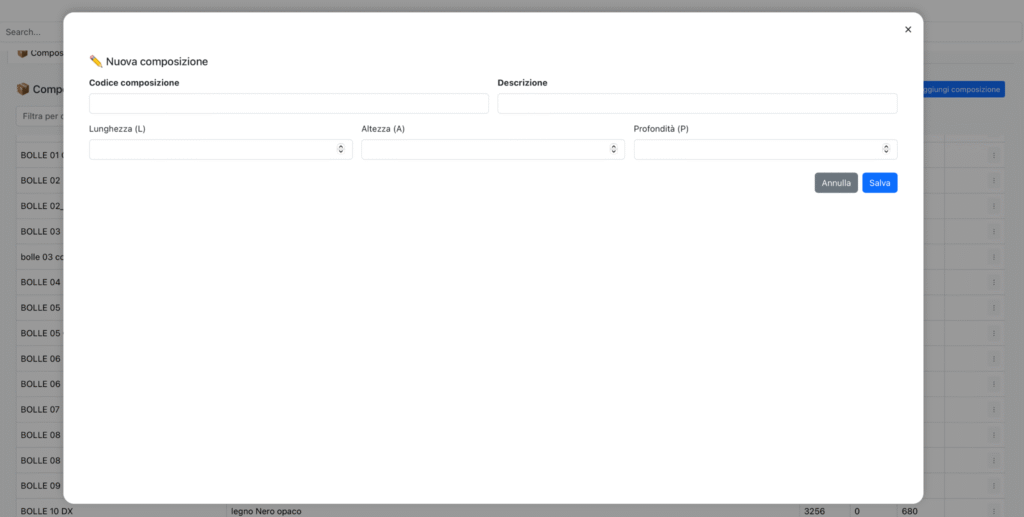
📋 Available Fields
Field | Description |
Composition code | Unique identifier of the composition. It is mandatory and must follow the company nomenclature (e.g., LAV 12, KITCHEN 01, WARDROBE XL). |
Description | Descriptive text of the composition. It may include material, finish, color, or dimensional features (e.g., “matte White lacquered”, “Cansiglio wood melamine”). |
Length (L) | Width of the composition, expressed in centimeters or company standard units. |
Height (H) | Height of the composition. Can be left empty if not relevant. |
Depth (D) | Depth of the composition. This field can also be optional. |
Dimensional Logic
The three parameters W (width), H (height), and D (depth) allow defining the main dimensions of the composition.
💾 Available actions
Button | Function |
Save | Register the new composition and add it to the main list. All required fields must be completed. |
Cancel | Closes the window without saving data. |
Example of compilation
Field | Example value |
Composition code | WASHBASIN 12 |
Description | Matte Sand Lacquered – W. 240 x D. 63 cm |
Length (L) | 240 |
Height (H) | 63 |
Depth (D) | 63 |
⚙️ Operational Tips
• Maintain codes consistent with the range numbering (e.g., MOD 01 → MOD 02 → MOD 03…).
• Always include the material or finish in the description: it simplifies search and indexing.
• If working with dimensional variants, use length as the primary field for automatic filters.
• It is possible to create empty compositions as placeholders for future entries.
✏️ Edit Composition Line
The Edit Row window allows you to update the data of a single component within a composition. It is useful for correcting quantities, measurements, or technical references without having to modify the entire composition table.

📋 Info Sheet
Field | Description |
Item Code | Identify the item to which the line refers. It must match a code present in the item database. |
Quantity | Number of pieces or units to include in the composition. |
Column 1 – 5 | Free fields that can contain technical references, categories, materials, or price list codes. |
Length (L) | Length of the component in centimeters. |
Height (H) | Height of the component. |
Depth (D) | Depth of the component. |
Unit of Measure (UM) | Select the unit of measure associated with the component (e.g., Piece, Meter, Square meter, etc.). |

🧾 Description Tab
In the Description tab (second tab of the window), you can:
• enter a detailed textual description of the component included in the composition. You can use TraduTron AI for automatic translations.

💾 Available actions
Button | Description |
Save | Confirm the changes to the row and automatically update the composition table. |
Cancel | Closes the window without applying changes. |