
Price list management
The Price List Management module allows you to view, create, and modify all sales price lists in the system. From this interface, you can manage the main parameters of each price list (code, description, currency, validity date), access calculated price lists, and duplicate or delete existing price lists.

🧭 Navigation
The top bar allows you to navigate between the various sections of the module:
• Price Lists → main view for manual management of price lists.
• Calculated Price Lists → displays price lists generated through calculation rules.
• Calculated Price Lists with BOM → shows price lists obtained from a bill of materials.
• Exclusions for Calculated Price Lists → allows you to define exceptions or items to exclude from calculations.
🗂️ Main View
Field | Description |
Code | Unique identifier of the price list. Clicking on the code opens the detail sheet. |
Description | Descriptive text of the price list (e.g., “Price List 2025”). |
Currency | Select the currency used for the price list (e.g., EUR, USD, GBP). |
Validity date | Start date of the price list validity. It can be selected via the calendar. |
Actions | Button with three-dot menu to edit, duplicate, or delete the price list. |
➕ Creating a New Price List
To create a new price list:
1. Click the green “Add” button at the top right.
2. Enter the price list code (unique).
3. Fill in the description, currency, and validity date fields.
4. Save the changes to add the price list to the table.
✏️ Editing an Existing Price List
1. Identify the price list to be edited.
2. Click on the Description, Currency, or Validity Date fields to edit them directly.
3. Changes are saved automatically or via the confirmation button.
📋 Actions Menu
The menu with the three vertical dots (⋮) offers several options:
• Edit → opens the full price list sheet.
• Duplicate → creates a copy of the price list (useful for subsequent versions, e.g., “LISTINO2025” → “LISTINO2026”).
• Delete → removes the price list (upon confirmation).
• Backup (if available) → generates a backup of the current price list.
🧮 Price List Types
The system distinguishes multiple categories of price lists, highlighted in the table:
• Main price lists (e.g., LISTINO2025)
• Test or backup price lists (e.g., ARTCOMB_BACKUP_170725)
• Price lists with specific combinations (e.g., LISTINO2025_NOPREZZI)
The names are conventional and can be customized according to business needs.
Practical example
Field | Description | Currency | Validity date |
PRICE LIST 2025 | Price List 2025 | EUR – Euro (€) | 19/07/2025 |
PRICELIST2025_NOPRICES | 2025 Price List without Prices | EUR – Euro (€) | 28/08/2025 |
ARTCOMB | Main price list | EUR – Euro (€) | 06/07/2025 |
Calculated Price Lists
The Calculated Price Lists section allows you to generate new sales price lists from an existing one by applying mathematical formulas or multipliers to the original prices. It is a useful tool for quickly creating updated versions of price lists (e.g., “resellers,” “discounted,” “export,” etc.), maintaining consistency with the main price list.
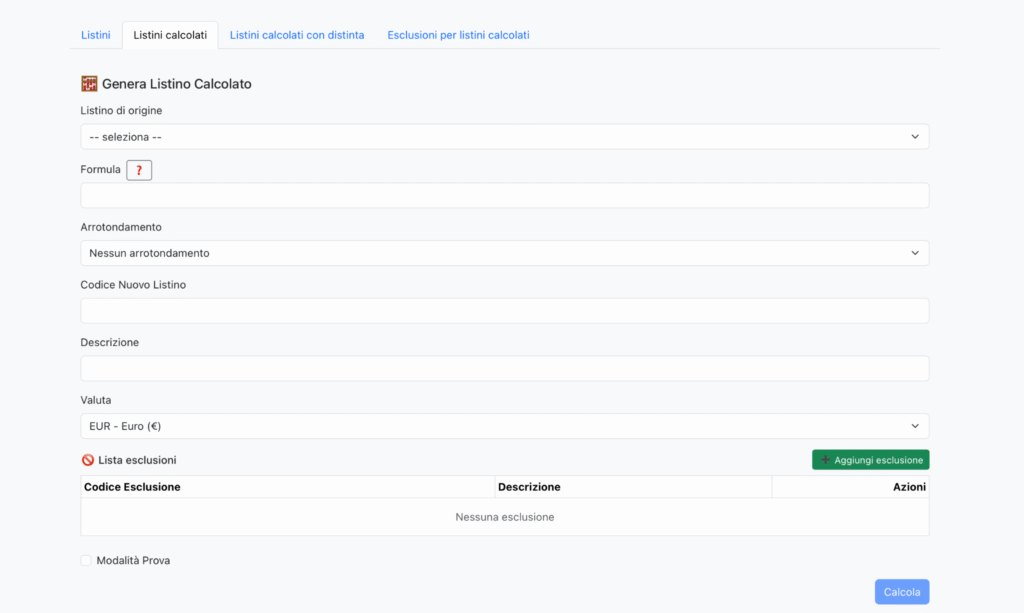
⚙️ Interface and main fields
Field | Description |
Original price list | Select the starting price list from which the prices will be taken. |
Formula | Field for entering the calculation formula (e.g., PRICE * 1.1 to increase by 10%). The ❓ button opens help with syntax examples. |
Rounding | Allows you to define the rounding rule (e.g., no rounding, €0.05, €0.10, etc.). |
New Price List Code | Enter the identification code of the new price list to be generated (e.g., LISTINO2025_NET). |
Description | Descriptive text that will appear in the price list table. |
Currency | Currency selection for the new price list (by default the same as the source price list). |
Exclusion list | Allows you to exclude specific items, combinations, or categories during the calculation. You can add one or more exclusions by clicking on Add exclusion. |
Test mode | If selected, the generation occurs in simulated mode: the system displays the result without saving the new price list in the database. |
Calculate | Start generating the new price list based on the set parameters. |
🧩 Calculation Formula
The Formula field accepts mathematical expressions that operate on the source list price. Available variables may include:
Variable | Meaning |
PRICE | Starting price (from the selected price list). |
S | Discount percentage (e.g., PRICE * (1 – S/100)). |
+, -, *, / | Standard mathematical operators. |
round(x, n) | Round the result to n decimal places. |
Examples:
• [PRICE] * 1.15 → 15% increase
• [PRICE] * 0.9 → 10% discount
🧾 Exclusion List
The Exclusion List section displays the items or codes that will be excluded from the calculation. You can:
• Add an exclusion with + Add exclusion
• Remove an exclusion from the Actions menu (⋮)
Exclusions can include:
• individual items
• product groups
• entire code families
🧠 Test Mode
By activating Test Mode, the system performs the full calculation but does not save the new price list. It is useful for verifying:
• correctness of the formula
• number of items involved
• any errors or missing exclusions
At the end of the simulation, a summary is displayed with:
• number of items processed
• total rows updated
• any exclusions applied
▶️ Step-by-step procedure
1. Select the source price list.
2. Enter the calculation formula.
3. Set any rounding.
4. Enter the code and description of the new price list.
5. Add one or more exclusions, if necessary.
6. (Optional) Activate test mode.
7. Click Calculate to generate the new price list.
⚠️ Operational Notes
• The new price list is created only if a price list with the same code does not already exist.
• Changes are irreversible: for safety, perform a backup of the source price list.
• If the calculation fails, check the syntax of the formula or the existence of the source price list.
Price Lists Calculated with Bill of Materials
The Calculated Price Lists with Bill of Materials section allows you to create complex price lists by applying a calculation bill of materials, which is a set of rules or markups that affect specific columns or groups of prices. It is the most advanced tool for managing increases, variations, or customized versions of price lists starting from preconfigured conditions.

📂 Interface and main fields
Field | Description |
Code | Identification name of the generated bill of materials or price list (e.g., LISTINO2025, PREZZI2025). |
Description | Brief description of the bill of materials or calculation rule (e.g., “Price list increase May 2025”, “LED surcharges”). |
Actions (⋮) | Management menu that allows you to modify, duplicate, or delete the selected bill of materials. |
🧮 Key Features
🔸 Creating a New Bill of Materials
1. Click on + New Bill of Materials at the top right.
2. Fill in the fields:
• Bill of Materials Code
• Description
• Any calculation rules (percentages, columns, or references to source price lists).
3. Save to add the bill of materials to the list.
Bills of materials can include:
• percentage increases or decreases (e.g., +10%)
• applications on specific columns (e.g., “columns 408, 416, 417”)
• copying or merging of price lists (e.g., “copy col. 020 to col. 0211”)
• thematic surcharges (e.g., “LED SURCHARGES”)
🔹 Calculation of a Bill of Materials
After configuring one or more bills of materials, you can perform the global calculation using the 🧮 Calculate button at the bottom right.
The system processes all the bills of materials in the list:
• automatically applying the defined formulas and rules
• updating or generating the resulting price lists
During processing, consistency checks are performed, and an internal log of operations is created.
🔹 Actions Menu (⋮)
The menu next to each row allows you to:
• ✏️ Edit the selected bill of materials
• 📄 Duplicate to quickly create a new variant
• 🗑️ Delete the bill of materials from the system
📊 Typical examples
Field | Description |
PRICE LIST 2025 | General Price List 2025 |
2025 + 10% | Increase columns 408, 416, 417 +10% |
MAGGLED | LED surcharges |
LACC MODELLO45_2025 | Copy col. 020 street in col. 0211 model 45 |
MODEL+MAGG | Coll 0220 + 100 |
⚠️ Operational Notes
• The bills of materials are saved in the database and can be reused in multiple sessions.
• Before performing the calculation, it is recommended to create a backup of the source price lists.
• Some bills of materials may require columns or combinations already present in the original price lists.
• Changes are irreversible: use the test mode if available.
🧠 Tips
• Maintain consistent names for the bills of materials (e.g., BRAND_YEAR_OPERATION).
• Group similar bills of materials in a logical sequence (e.g., first increases, then copies, then surcharges).
• Internally document the rules used, so they can be reused or modified in the future.
🚫 Module: Exclusions for Calculated Price Lists
The Exclusions module for calculated price lists allows you to define and manage sets of items, categories, or combinations that must be excluded during the generation of calculated price lists. Exclusions enable precise control over which elements to apply or not apply formulas, preventing unwanted changes to specific products.
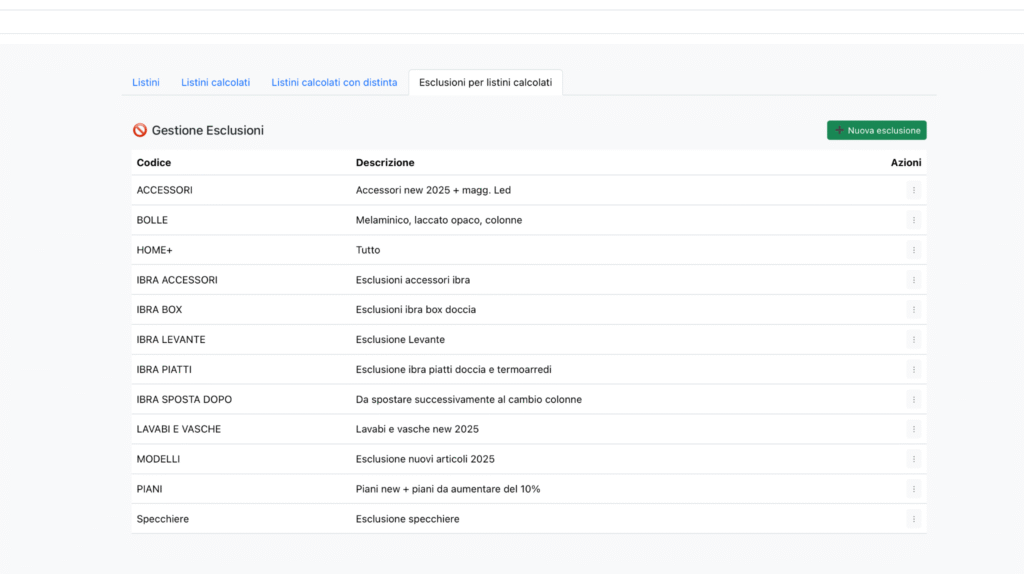
📋 Interface and main fields
Field | Description |
Code | Unique exclusion identifier. It must be clear and consistent (e.g., ACCESSORI, PIANI, IBRA_BOX). |
Description | Explanatory text specifying the content or purpose of the exclusion (e.g., “New 2025 accessories + LED surcharge”). |
Actions (⋮) | Management menu that allows you to modify or delete the selected exclusion. |
➕ Creating a New Exclusion
1. Click the green button + New Exclusion at the top right.
2. Enter the following fields:
• Code → short and meaningful name (e.g., LAVABI_E_VASCHE)
• Description → explanation of the exclusion scope (e.g., “Lavabi e vasche new 2025”)
3. Save to add the exclusion to the table.
4. The exclusion can then be selected within the Calculated Price Lists or Calculation Sheets modules.
✏️ Edit or Delete
• To edit an existing exclusion, click on the ⋮ menu next to the corresponding row.
• You can update the code, description, or linked content.
• Deletion permanently removes the exclusion from the system (upon confirmation).
🧩 Examples of Common Exclusions
Field | Description |
ACCESSORIES | New 2025 accessories + LED increments |
MODELLO_1 | Melamine, matte lacquered, columns |
MODEL 2 ACCESSORIES | Accessory exclusions |
MODEL 2 BOX | Shower enclosure exclusions |
WASHBASINS AND BATHTUBS | Washbasins and bathtubs new 2025 |
MODELS | Exclusion of new items 2025 |
TOPS | New tops + tops to increase by 10% |
MIRRORS | Exclusion of mirrors |
⚙️ Operation in Calculations
When generating a calculated price list or a bill of materials:
• exclusions are automatically read;
• items or columns belonging to an exclusion are skipped during the calculation;
• the system logs excluded elements for traceability.
🧠 Operational Tips
• Use clear and consistent names for exclusion codes: they assist in future maintenance.
• Create groups of logical exclusions (e.g., materials, categories, brands).
• Update exclusions with each price list revision or collection release.
• Before launching a complex calculation, ensure exclusions are correctly associated.
✏️ Edit Exclusions
The Edit Exclusions window allows you to manage in detail the items and columns that need to be excluded from the automatic price list calculations. Each row represents a group of item codes associated with one or more excluded column numbers.
📋 Window structure
Field | Description |
Verification price list | Allows you to select an existing price list to validate the correspondence of item codes and inserted columns. |
Item Code | Text field containing one or more item codes separated by commas. It is also possible to enter entire groups or families of items. |
Columns excluded | Field to specify the columns (one or more) that should be excluded from the calculation, separated by commas (e.g., 100,101,102). |
Actions (⋮) | Save or delete commands for each row. |
➕ Add a new row
To add a new exclusion rule:
1. Click the green + Add row button.
2. Enter the item codes in the Item Code field.
3. Specify the columns to exclude in the Excluded Columns field.
4. Optionally, select a verification price list to check the validity of the codes.
5. Click Save to record the row.
✏️ Edit or Delete Rows
• To update✏️ Edit or Delete Rows
• To update a row, modify the fields directly and press Save.
• To remove a row, click on the trash icon 🗑️.
• Fields highlighted in red indicate invalid or to-be-verified values.
Practical Example
In the case shown:
Item Code | Columns excluded |
123MAG00, 123MAG01, 123MAG02 | 100,101,102 |
AC00, AC01, AC02, AC03 | 100,101,102 |
These lines indicate that all listed items will be excluded from columns 100, 101, and 102 during the calculations of price lists or bills of materials.
⚙️ Operational Tips
• Group similar items on the same line to reduce complexity.
• Maintain a consistent format (codes separated by commas, without spaces).
• Always use verification price lists to identify obsolete codes.
• After updating an exclusion, perform a recalculation in test mode to ensure the results are correct.