
Headers
The Headers section allows you to manage all descriptions that are not linked to an item code (SKU). From here, you can monitor the status of multilingual descriptions, translate content, and create new ones.
The organization of headers is similar to that of items; each description is grouped under a freely usable header code.
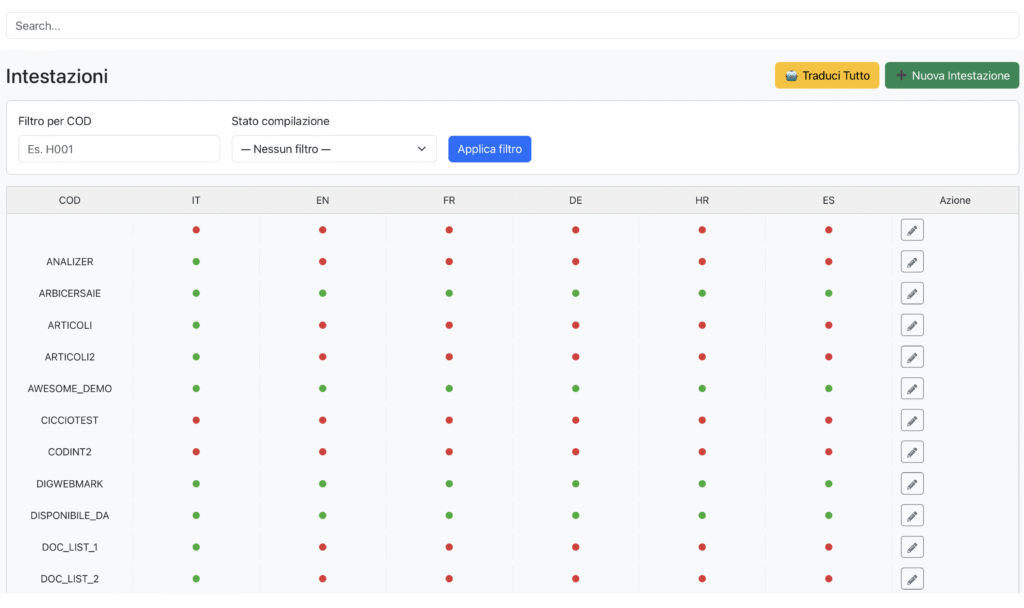
Translate All → Initiates an automatic translation process for all headers that require it.
New Header → Allows you to create a new header manually.

Filters
Filter by COD → By entering a header code (e.g., HEAD001), the list is filtered to show only the corresponding header.
Compilation status → Allows filtering based on the completion status of translations (e.g., Partial, Complete, Empty).
Apply filter → Updates the list based on the selected criteria.

Header Table
The table lists for each header:
COD → Identification code of the header.
Languages (IT, UK, FR, DE, ES, PT, US, …) → For each active language, the translation status is shown:
🟢 Green = present
🔴 Red = missing
Action → ✏️ Button to open the details and edit the header.
Typical Operational Flow
Use the search field or filters to locate the header.
Check the status of translations: the system clearly shows which languages are complete and which are not.
Press ✏️ Edit to open the item tab and make changes or enter new descriptions.
If necessary, use Translate All to start the automatic translation of missing content.
Create a new header with New Header when you need to expand the catalog.
Practical Tips
Use the Compilation Status filter = Partial to quickly find headers that need translations.
Before using Translate All, ensure that the base language texts (e.g., Italian) are complete and correct.
Headers – Creating a New Header
The New Header function allows you to add a new header to the catalog. The operation is carried out in multiple tabs (Descriptions, History), but currently, the only active section is Descriptions, which is necessary to create the header and assign it a unique code.

Code
Enter the header identification code.
It must be unique: two headers cannot have the same code (but two headers can have the same descriptions).
It is recommended to follow the convention used in the company (e.g., prefixes for product family, suffixes, etc.).
Save (green)
Creates the new header and registers it in the system.
After saving, it will be possible to complete the other tabs (descriptions and history).
Operational Flow
Open the Headers section and click on New Header.
Enter the Code in the designated field.
Press Save.
Once saved, the header will be created and the other tabs will become editable to complete the information.
Practical Tips
Ensure that the code is not already in use to avoid conflicts or overwriting.
Use short but meaningful codes (e.g., HEAD-JENNY01) to facilitate catalog search and maintenance.
After creating the item, immediately complete at least the descriptions in the main language (e.g., IT) before proceeding with translations.
Descriptions
The Descriptions tab allows you to enter, modify, and monitor the header descriptions in all languages managed by the catalog. Each header can have multiple descriptive fields (DES, DES1, DES2, etc.), which correspond to texts of different lengths or purposes (title, short description, extended description…).
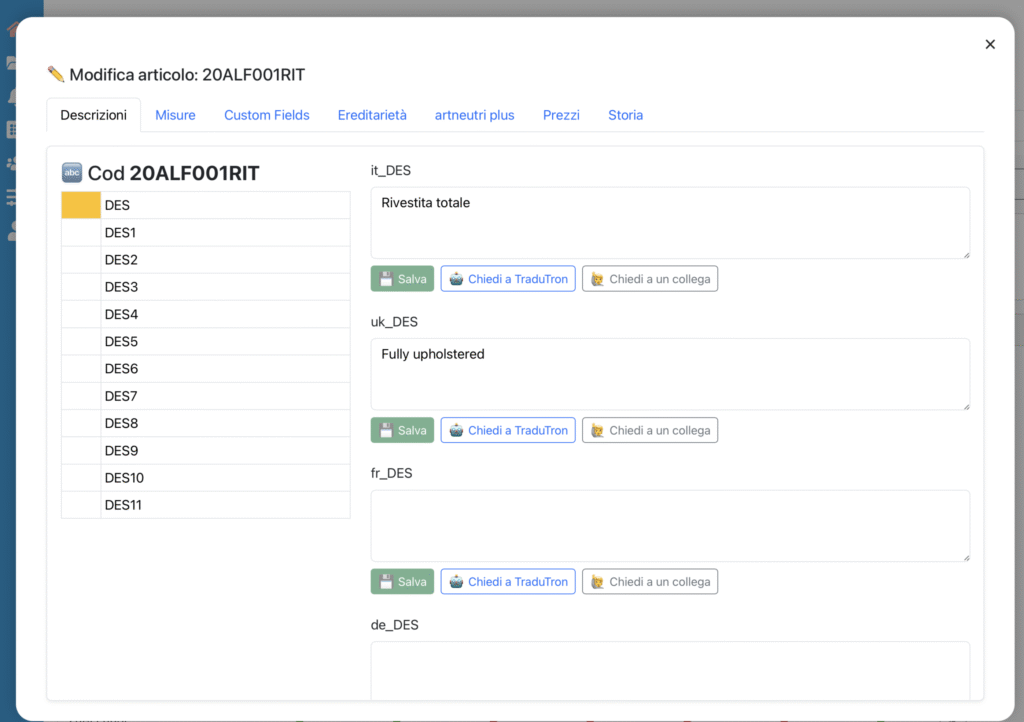
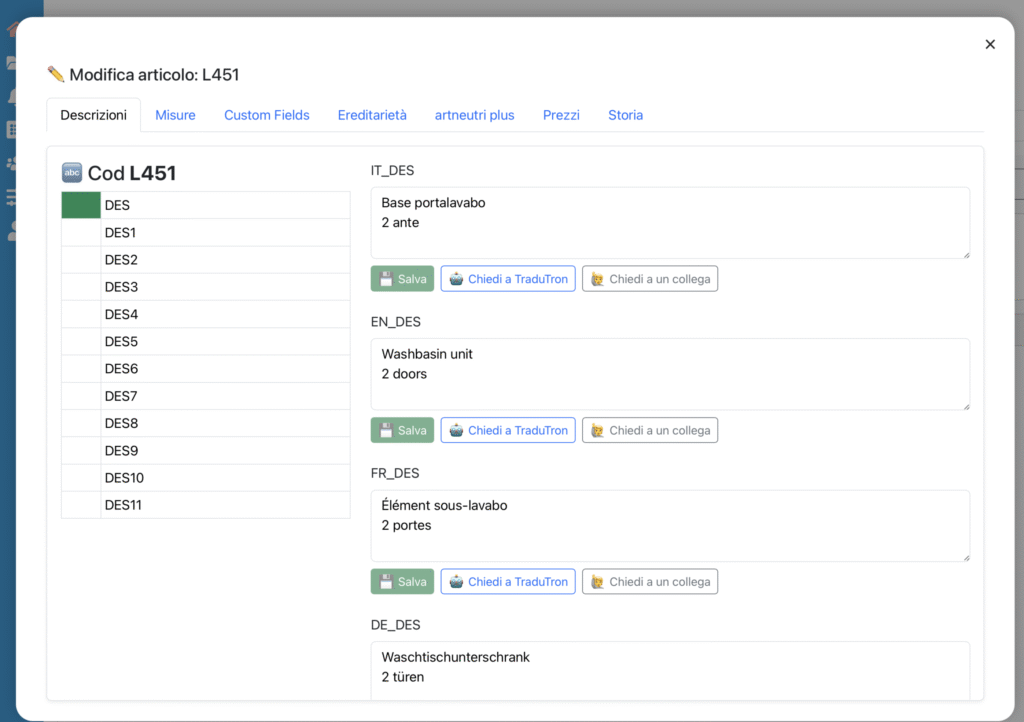
Field list (on the left)
Show all available descriptive fields (DES, DES1, DES2, …).
Each field is colored based on the completion status:
🟢 Green = Complete (all languages have a description)
🟡 Yellow = Partial (some languages have the description, others do not)
⚪️ White = Empty (no description entered)
Editing area (on the right)
For the selected field, display the text boxes for each language (e.g., IT, EN, FR, DE, etc.).
Here you can enter or modify the descriptions.
Available functions
For each language, the following buttons are available:
💾 Save → Records the entered description.
🤖 Ask TraduTron → Automatically requests the translation of the text from the base language (usually IT) via the integrated AI engine.
🙋♂️ Ask a colleague → Allows sending a manual completion request to another user.
Typical operational flow
Select the field to complete from the list on the left (e.g., DES, DES1).
Enter the description in the main language (e.g., Italian).
Use Ask TraduTron to obtain automatic translations, or enter them manually.
Save each description with the 💾 button.
Check the field color:
Green = completed
Yellow = some languages missing
White = no description entered
Always complete the main language (IT) before translating.
Use Ask TraduTron to speed up the process, but check the quality of the translated text.
Use color status to quickly monitor progress: very useful to understand which items are ready and which need completion.
History
The History section allows you to view the log of changes made to a header. Each significant operation is tracked, indicating the date, the operator who performed it, and the details of the modification.
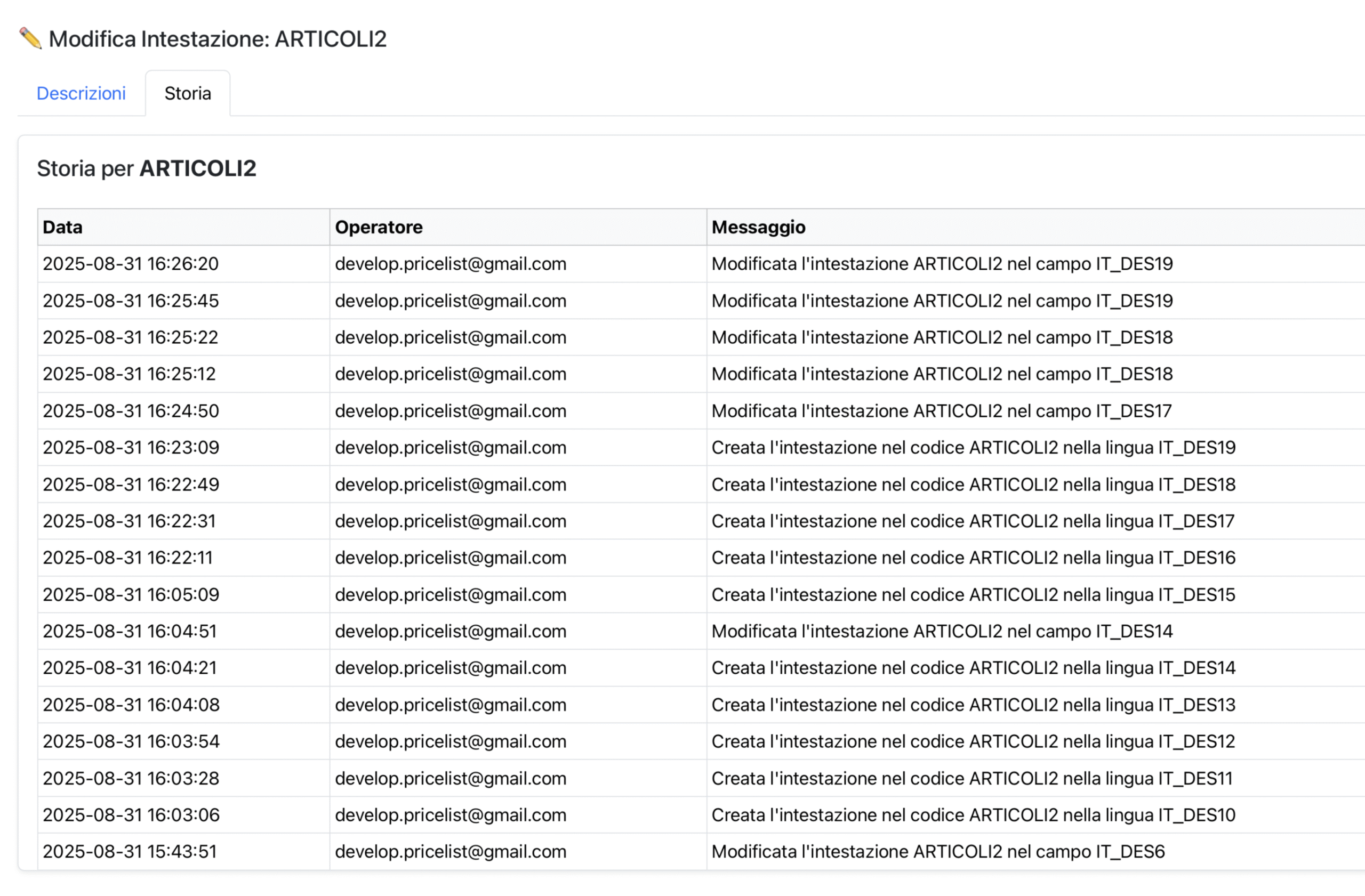
Table Structure
Date: date and time when the modification occurred.
Operator: Identifies who performed the operation:
Human user → displayed with the operator’s email address.
Automatic process → executed by the system (e.g., tradutron_runner updating translations).
Message: describes the action performed, specifying the modified field and header.
Example: “New description in header HEAD01 in field EN_DES”.
Typical Operational Flow
Open the History tab of a header.
Consult the list to understand when and by whom changes were made.
Use the information to:
– Trace the latest translations entered by TraduTron.
– Verify manual changes made by users.
– Check for any anomalies or duplications.
Practical Tips
If a field is not updated as expected, check here if it was overwritten by an automatic process.
Use the history as an audit trail tool to always know who modified what and when.
In case of collaboration with multiple users, this section is useful for coordinating work and reducing conflicts.