
TraduTron AI
What is TraduTron
TraduTron is the automatic translation engine integrated into Pricelist Server. It is designed to manage business content translations in a scalable and customized way: item descriptions, price list texts, technical and commercial documentation.
Unlike generic translators, TraduTron is optimized for product catalogs, price lists, technical documentation and can be tailored to the specific needs of each company through rules and preferences.
The fundamental difference: context
The strength of TraduTron lies not only in the use of AI models but in the fact that the system “knows what it is.” Thanks to the system prompt, TraduTron is instructed to act as a professional translator with field experience, capable of immersing itself in the business context.
This means that:
TraduTron does not translate word for word, but adjusts sentences based on the industry, product, and business terminology.
Each translation is “tailored” to the context: the engine interprets texts with the same sensitivity as a human translator who knows the catalog well.
The final result is closer to professional localization than to automated translation.
TraduTron Rules
What they are
Rules are one of the distinctive elements of TraduTron: they allow control and “shaping” of the translation. They are divided into:
Pre Rules → instructions inserted in the system prompt to guide the AI.
Post Rules → corrections and syntactic processing applied to the translated text.
Pre-translation Rules
The Pre Rules are actual additional instructions provided to the AI model before translation. They are embedded in the prompt and serve to “condition” the AI’s behavior, much like a project manager would with a human translator.
Examples:
“Never translate item codes (e.g., L410, BA60).”
“Always keep units of measure in the original format (cm, mm).”
“Translate with a formal and technical style, avoiding abbreviations.”
“If you encounter the word ‘top lavabo’, do not change it to ‘sink top’ but leave it unchanged.”
👉 In practice, these are semantic guidelines that influence the translation even before it is generated.
Post-Translation Rules
The Post Rules intervene after the translation has been produced. They do not interact with the AI but work with syntactic logic (search/replace, normalization, regex).
Examples:
Replace “Wash-basin” with “Washbasin” (terminology consistency).
Correct capitalization in brand names (e.g., “grohe” → “Grohe”).
Standardize punctuation or spaces (e.g., remove double spaces).
Translate “drawer” → “cassetto” in every specific context.
👉 They are deterministic rules: if they find a match, they modify it without ambiguity.
Key Difference
Pre Rules = semantic instructions → influence how the AI thinks and translates.
Post Rules = syntactic corrections → refine the text after translation.
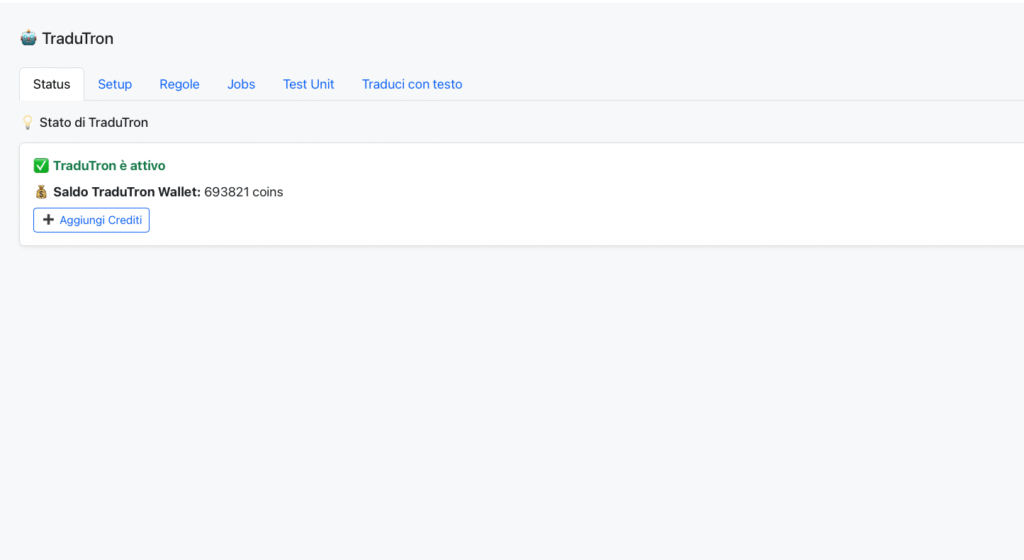
Main Navigation
The module is structured into several sections, accessible from the top bar:
Status → general status of the service and credit balance.
Setup → basic configuration.
Rules → management of translation rules (pre/post processing).
Jobs → monitoring of batch translation executions.
Test Unit → test panel to verify translation quality.
Translate with text → interface to search for text in the pricelist server and launch translations. Useful for redoing translations after adding rules with populated translations.
TraduTron – Setup
The Setup screen allows you to configure the identity and operating parameters of TraduTron. Here, you decide which AI engine to use, which language is the reference base, and especially how TraduTron should behave, through the definition of the Identity.

🔧 AI Engine
Field that allows you to select the AI model to use.
Each model may have a different consumption cost (expressed in coins).
Example: TraduTron Legacy (1 character = 1 coin).
🌍 Main Language
Indicate the source language used as the basis for translations.

🆔 Identity
The core of the configuration: this is where you establish “who” TraduTron is and how it should behave during translations.
Two possible modes:
Standard Prompt → ready-to-use identities (e.g., Bathroom Furniture Producer).
Detailed Custom Prompt → the ability to fully customize TraduTron’s identity starting from a ready-made identity or creating a completely personalized one.
This section allows TraduTron to “immerse” itself as a professional translator in any sector rather than a generic translator.
Available functions:
✍️ Custom Prompt → text area to write or modify the identity.
💾 Save Custom Prompt → save the customized settings.
Typical Operational Flow
Select the AI model in AI Engine.
Set the Primary Language (e.g., IT).
Define the Identity:
Enter a synthetic prompt for quick tests.
Or write a detailed Custom Prompt to ensure high-quality translations consistent with the industry.
Save the settings.
Practical Tips
For simple projects → if your company is already listed, use these identities.
For complex projects → if the company is not among the predefined identities or you want to customize one. An in-depth knowledge of prompting techniques is required.
Remember: the clearer and more detailed the identity, the more TraduTron translates like an industry expert.
TraduTron – Rules
The rules are the core of the TraduTron system: they allow control over translation behavior, ensuring terminological precision and consistency across catalogs, languages, and projects.
The rules can be of two types:
Pre-translation → semantic instructions provided to the AI before translation, directly influencing its behavior.
Post-translation → syntactic transformations applied after translation (fixed glossaries).
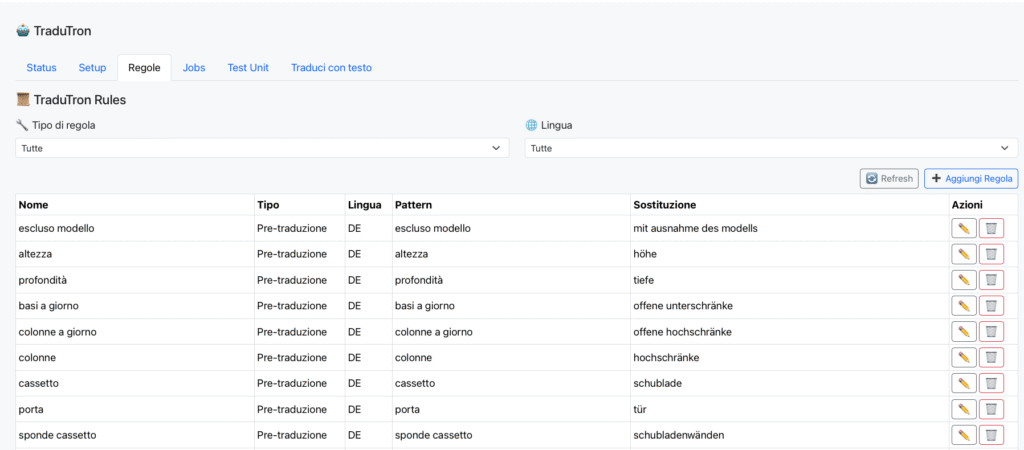
Rules Screen
The table displays all configured rules, with the following columns:
Name → descriptive title of the rule.
Type → Pre-translation or Post-translation.
Language → language to which the rule applies.
Pattern → the word or expression to intercept.
Replacement → the text or instruction to apply.
Actions → ✏️ edit / 🗑️ delete.
You can filter the rules by Rule Type and by Language. The ➕ Add Rule button opens the creation window.
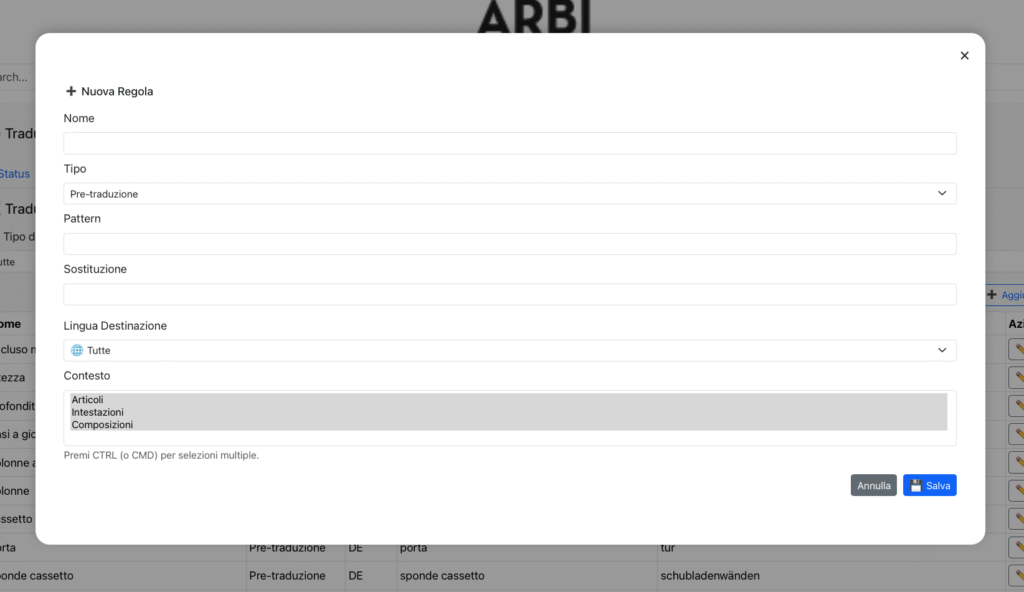
Creating a New Rule
The configuration window allows you to define:
Name → description of the rule (e.g., “Do not translate item codes”).
Type → select Pre-translation or Post-translation.
Pattern → the term or phrase to check.
Replacement → the replacement text (or the rule to apply).
Target Language → choose which language to apply the rule to (or all).
Context → scope in which the rule is valid (Items, Headers, Compositions).
Pressing Save adds the rule to the list and it becomes immediately active.
Practical Examples
Pre-translation
Name: height
Type: Pre-translation
Language: DE
Pattern: “height”
Replacement: “höhe”
👉 TraduTron will already receive the indication that “height” should be translated to “höhe”, and will behave accordingly.
Post-translation
Name: unchanged brand
Type: Post-translation
Language: EN
Pattern: “mm”
Replacement: “mm.”
👉 If the AI translates “mm” without a period (perhaps due to a source text error), the rule will always correct it back to “mm.”.
Key Difference
Pre Rules = part of the semantic prompt → they act first, guiding the AI like guidelines for a human translator.
Post Rules = syntactic rules → they act afterward, correcting or standardizing the text.
Practical Tips
Use Pre Rules to provide strategic instructions: terms that should not be translated, style to maintain, preferred glossaries.
Use Post Rules to normalize and clean up: punctuation, capitalization, fixed substitutions.
Regularly update the rules based on errors or inconsistencies identified in translations.
TraduTron – Jobs
The Jobs section is the monitoring panel for all translations performed using the “translate all” functions in the articles or headers sections or in the “translate with text”. Here, the user can check the status, source and translated texts, technical details, and — if necessary — intervene manually.
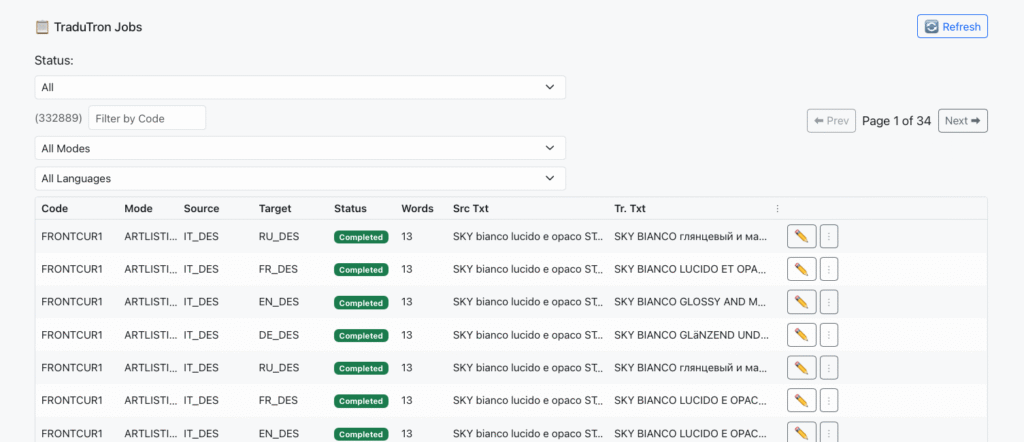
Available Filters
At the top, there are several filtering tools:
Status → allows you to select the status of jobs:
All → all jobs
Pending → jobs awaiting execution
Running → jobs in progress
Completed → jobs completed successfully
Error → failed jobs
Filter by Code → search field for item code.
Mode → selects the origin of the job:
Items
Headers
Language → allows filtering by target language (IT, EN, FR, DE, RU, …).
Thanks to these filters, you can quickly isolate jobs of interest, even in very large datasets.
Job Table
Each row corresponds to a single translation and is composed of:
Code → item code or reference (e.g., FRONTCUR1).
Mode → source section (e.g., ARTLISTINI_NEW).
Source → source field of the translation (e.g., IT_DES).
Target → destination field (e.g., DE_DES, EN_DES).
Status → current status (Pending, Running, Completed, Error).
Words → number of words translated.
Src Txt → source text.
Tr. Txt → translated text.
Actions → ✏️ to edit, ⋮ for additional options.

Job Details
Clicking on a row opens the Job Details window, which shows:
ID Run → unique identifier of the job.
Code → item code.
Mode → type of source (Artlistini, Headers, etc.).
Source Field → source field (e.g., IT_DES).
Target Field → target field (e.g., RU_DES).
Status → job status.
Total Words → count of processed words.
User → user or process that initiated the translation (e.g., tradutron_runner).
Start / End → start and end timestamp.
Source Text → original text.
Translated Text → translated text.
This section is useful for audit, debugging, and precise corrections.
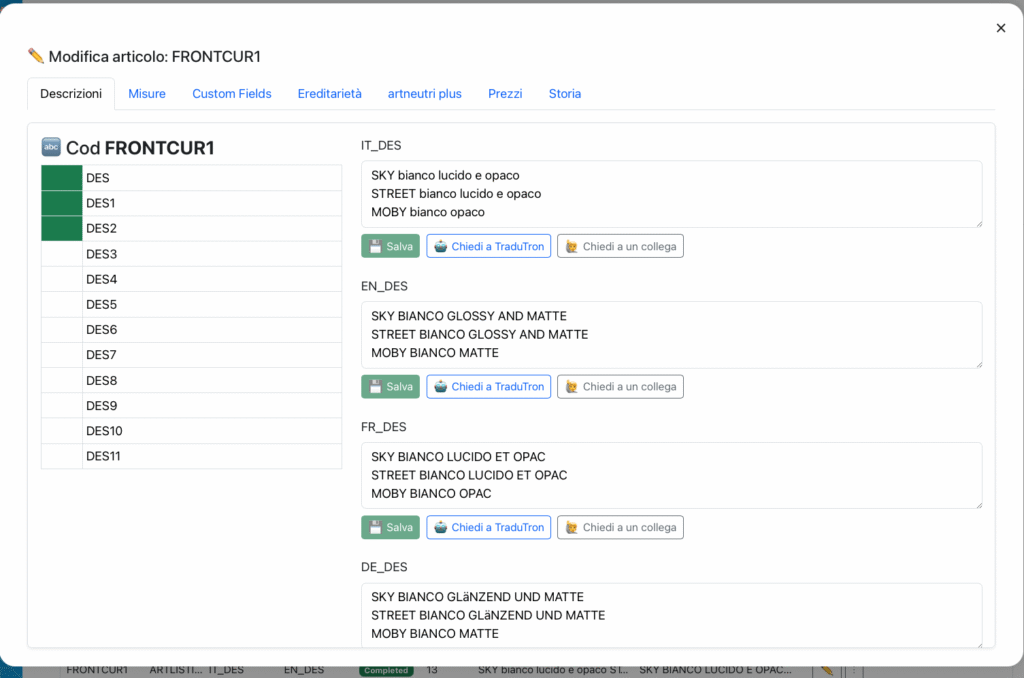
Link to Articles or Headers
Each job is linked to a real article: by opening the corresponding article or header, you will find fields with the source and translated texts. The user can:
– Verify the translation result.
– Edit manually.
Request a new translation job via the Ask TraduTron button.
Practical Tips
Use status filters to monitor running or error jobs.
Always check the job details to understand if an error originates from the source text, a rule, or the AI engine.
If frequent manual corrections are needed for certain terms, consider adding Pre or Post rules to automate the process.
Use Mode and Language filters for targeted audits (e.g., all German translations for headers).
📑 Test Unit
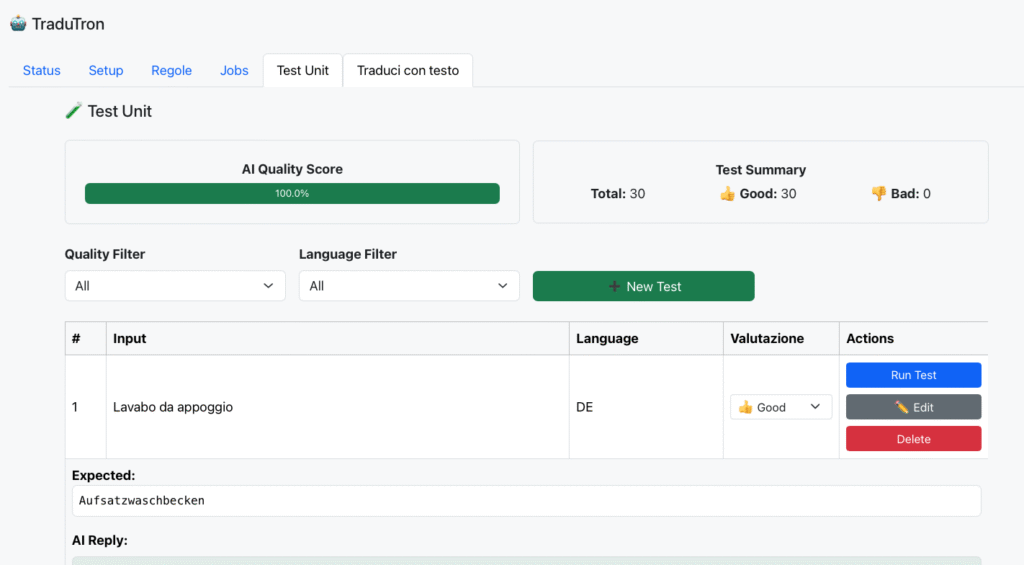
The Test Unit section is used to verify the quality of translations produced by TraduTron in a structured and repeatable manner. Here, you can input test cases (phrases or words), execute the translation, and compare the result with the expected output. This tool is designed to check terminological consistency and monitor improvements in the translation engine over time.
📊 Overall Results
At the top of the screen, aggregate statistics are displayed:
AI Quality Score → percentage of tests rated as “Good”.
Total → total number of tests performed.
Test Summary → count of good cases (👍 Good) and unsatisfactory cases (👎 Bad).
You can filter the tests by:
Quality (only Good or Bad).
Language (e.g., DE, EN, FR).
➕ Creation of a New Test
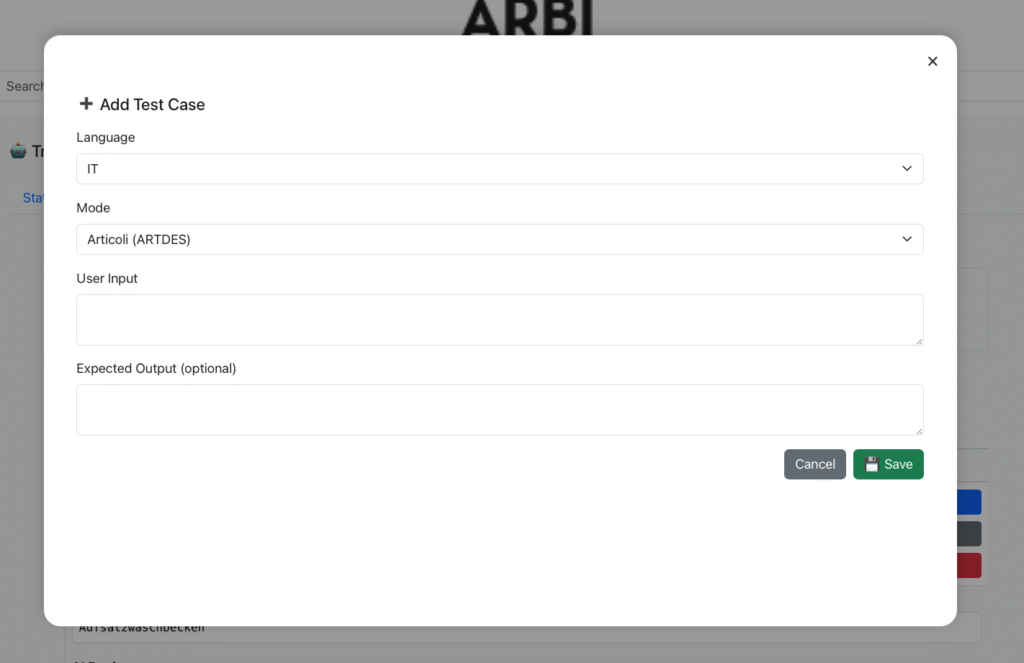
Clicking on New Test opens the entry module for a new test case:
Language → the target language for testing the translation (e.g., DE, EN, FR, …).
Mode → the reference context (e.g., Articles, Headers).
User Input → the source text, i.e., the sentence to be translated.
Expected Output (optional) → the expected translation. If filled in, it allows automatic evaluation of the match with the translation proposed by the AI.
👉 Once saved, the test enters the list of available cases.
📋 Test Execution
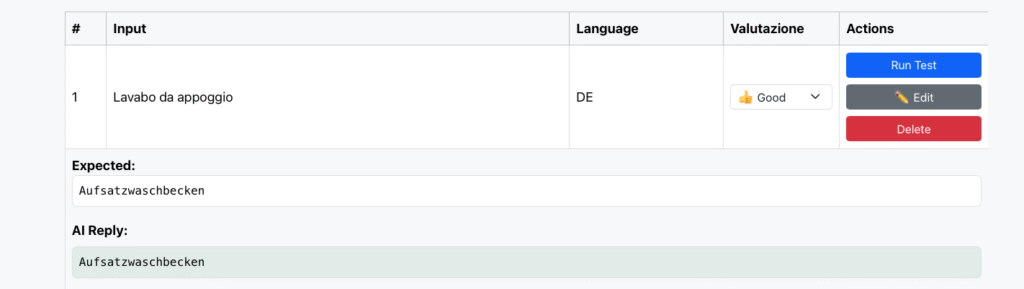
The main screen displays the list of created tests with the following columns:
Input → the original text.
Language → the selected target language.
Expected → the expected translation (if defined).
AI Reply → the translation returned by TraduTron.
Evaluation → the test rating (👍 Good or 👎 Bad).
Each row allows you to:
Run Test → rerun the translation to check for any improvements.
Edit → modify the test (input, expected output, language, etc.).
Delete → remove the test.
✅ In this way, Unit Tests become a true quality control dashboard, useful both for translators and for those managing catalogs who want to ensure that the terminology remains consistent over time.
🧠 TraduTron Brains Overview
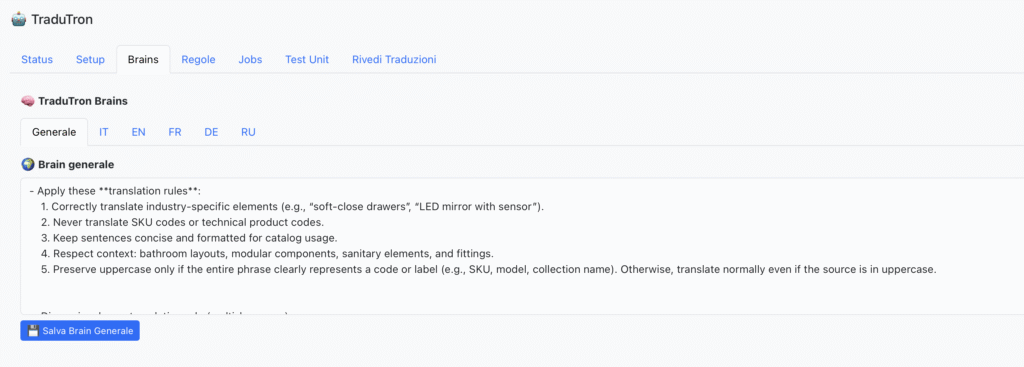
The TraduTron Brains module allows you to define advanced behavior rules for the AI translation engine. Each brain represents a set of instructions and constraints that the AI must apply during text translation or rewriting. The brains are used internally by the TraduTron Brain Engine to contextualize language, manage terminological consistency, and maintain uniform translation treatment. Unlike PRE and POST rules that target a specific word or set of words for translation, brains describe a translation reasoning process. Brains is a highly advanced feature of TraduTron AI and requires a good understanding of prompting techniques; if in doubt, consult devcore technical support.
Brains are divided into two categories:
General Brain
Contains global rules valid for all languages.
Typically includes common instructions on tone, format, and behavior (e.g., “maintain original capitalization”, “do not translate codes or model numbers”).
Brains per language
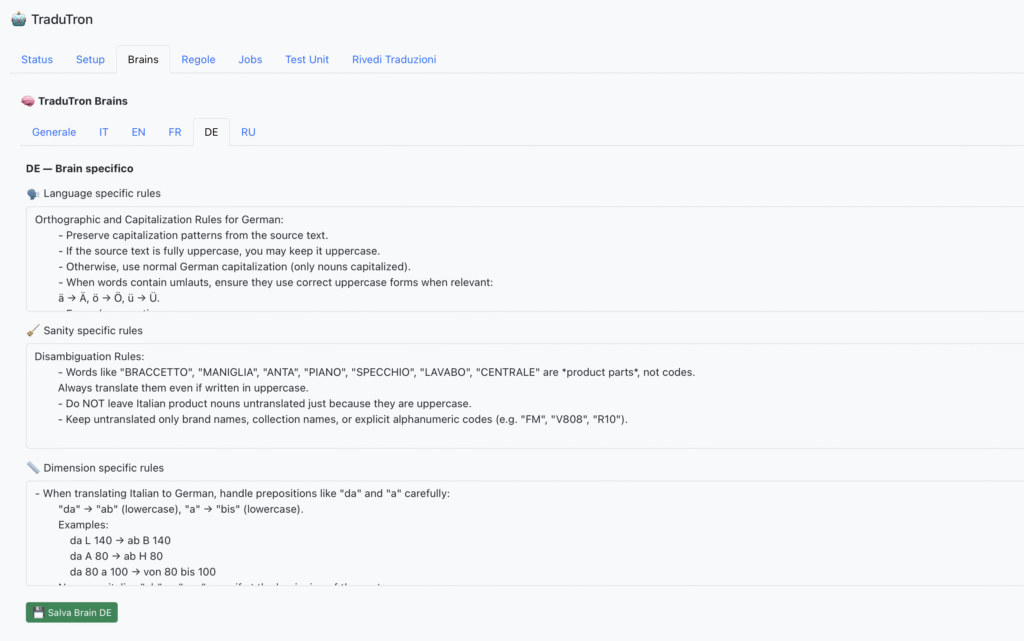
Each language has its own sub-brain divided into three distinct sections:
Language specific rules – manages grammar, tone, and linguistic exceptions. Example: how to handle capitalization in German or pronouns in French.
Sanity specific rules – contains control and semantic cleaning rules. Example: removing double translations, incorrect spaces, or unwanted symbols.
Dimension specific rules – defines the management of units of measure and numerical notations. Example: “cm” → “mm” or rules for writing “W 80 × H 60 × D. 20 cm”.
Brains per language
Each language has its own sub-brain divided into three distinct sections:
Language specific rules – manages grammar, tone, and linguistic exceptions. Example: how to handle capitalization in German or pronouns in French.
Sanity specific rules – contains control and semantic cleaning rules. Example: removing double translations, incorrect spaces, or unwanted symbols.
Dimension specific rules – defines the management of units of measure and numerical notations. Example: “cm” → “mm” or rules for writing “W 80 × H 60 × D. 20 cm”.
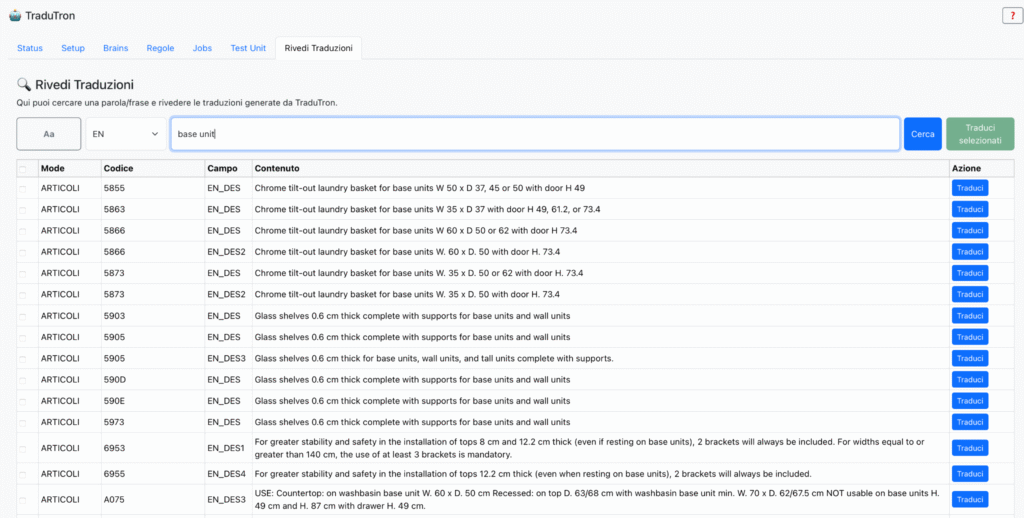
Each row represents a record translated by TraduTron, with the following columns:
Mode: Source table of the record (e.g., ITEMS, HEADERS, etc.)
Code: Item code or translated entity
Field: Name of the field containing the translation (e.g., EN_DES, EN_DES2, etc.)
Content: Text of the generated translation
Action: Translate button to regenerate the single translation
Multiple selection
Each row can be selected via the checkbox on the left.
Once multiple records are selected, you can press Translate selected to regenerate them in bulk.
Key Features
Full-text search
The search engine performs a partial scan of the text within the translated fields. You can search for a whole word or a partial phrase (e.g., base unit, wall shelf, etc.).
Language filter
TraduTron will only display fields corresponding to the selected language (e.g., EN_DES, EN_DES2, etc.).
Targeted update
By pressing Translate on a single line, TraduTron recalculates the translation for that specific field using the current rules (including active Brain and RAG).
Multiple retranslation
By selecting multiple lines and clicking on Translate selected, the system batches the retranslation requests to the AI engine, showing the progress status in the Jobs log.
🔧 Consistency check: verify if a specific expression has been translated consistently across multiple items or catalogs.
🧩 Update after changes to Brains: after updating the rules of a brain (e.g., dimension or sanity), you can filter the affected descriptions and regenerate them in a few clicks.
🕵️ Targeted search: useful for identifying incorrect translations or those needing manual correction (e.g., grammatical errors, units of measure, formatting).
Technical Details
The displayed translations come from the dynamic tables of the database (ARTICOLI, INTESTAZIONI, etc.) and are retrieved through a targeted query on the selected language field.
The system does not modify translations until Translate or Translate Selected is pressed.
Each new translation updates the corresponding field and logs an event in the system log.
Practical example
Search: base unit
Language: EN
Result: list of items containing the phrase “base unit” in their English translations.
From here you can:
click Translate to regenerate a single text, or select multiple rows and click Translate selected to perform a group retranslation.